How booking and deposits work
A guide for members, from joining to cancelling a booking.
On this page
Joining your community
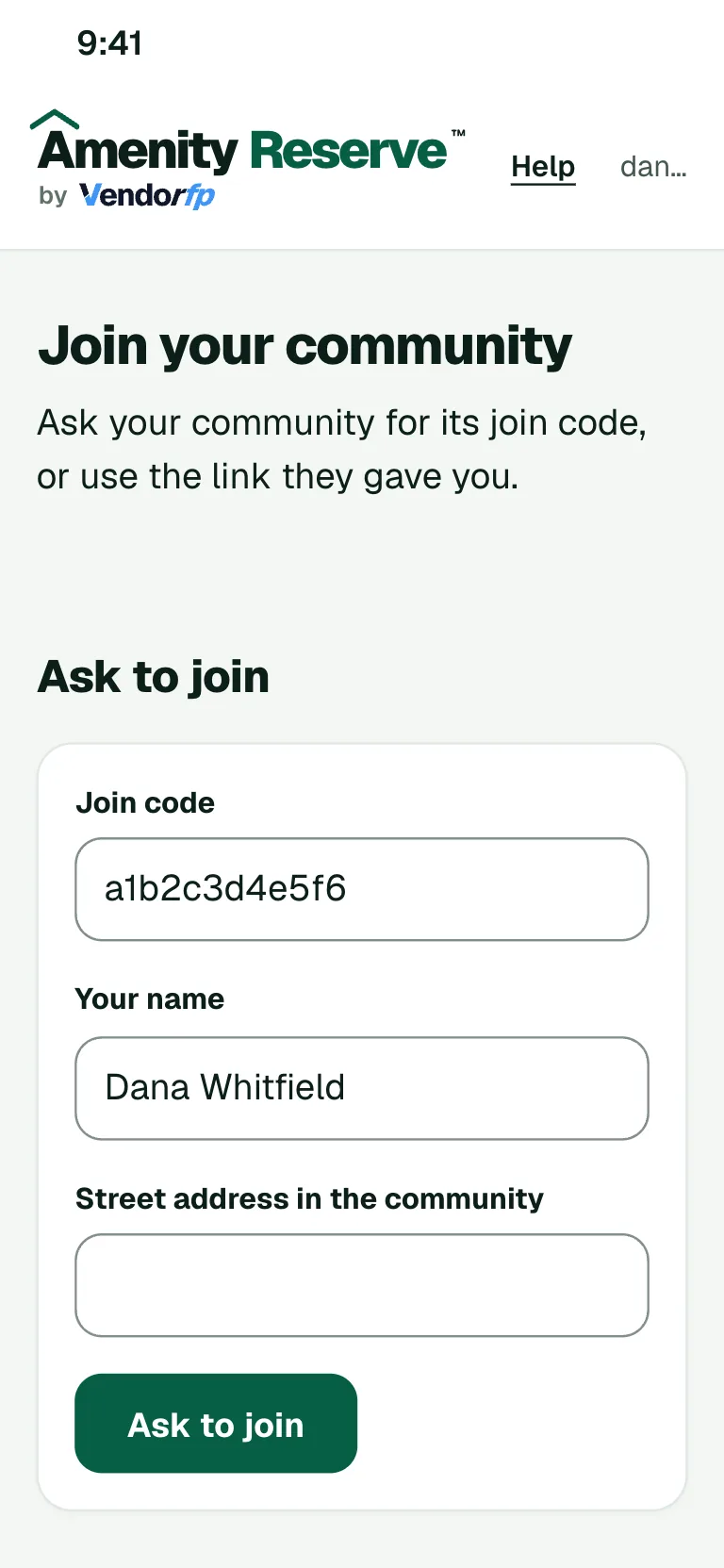
Your community gives you a booking link, or adds you from its member list. If you sign up from the link, a manager approves you first. You sign in with a link or code sent to your email, so there is no password to remember.
Finding and booking a space
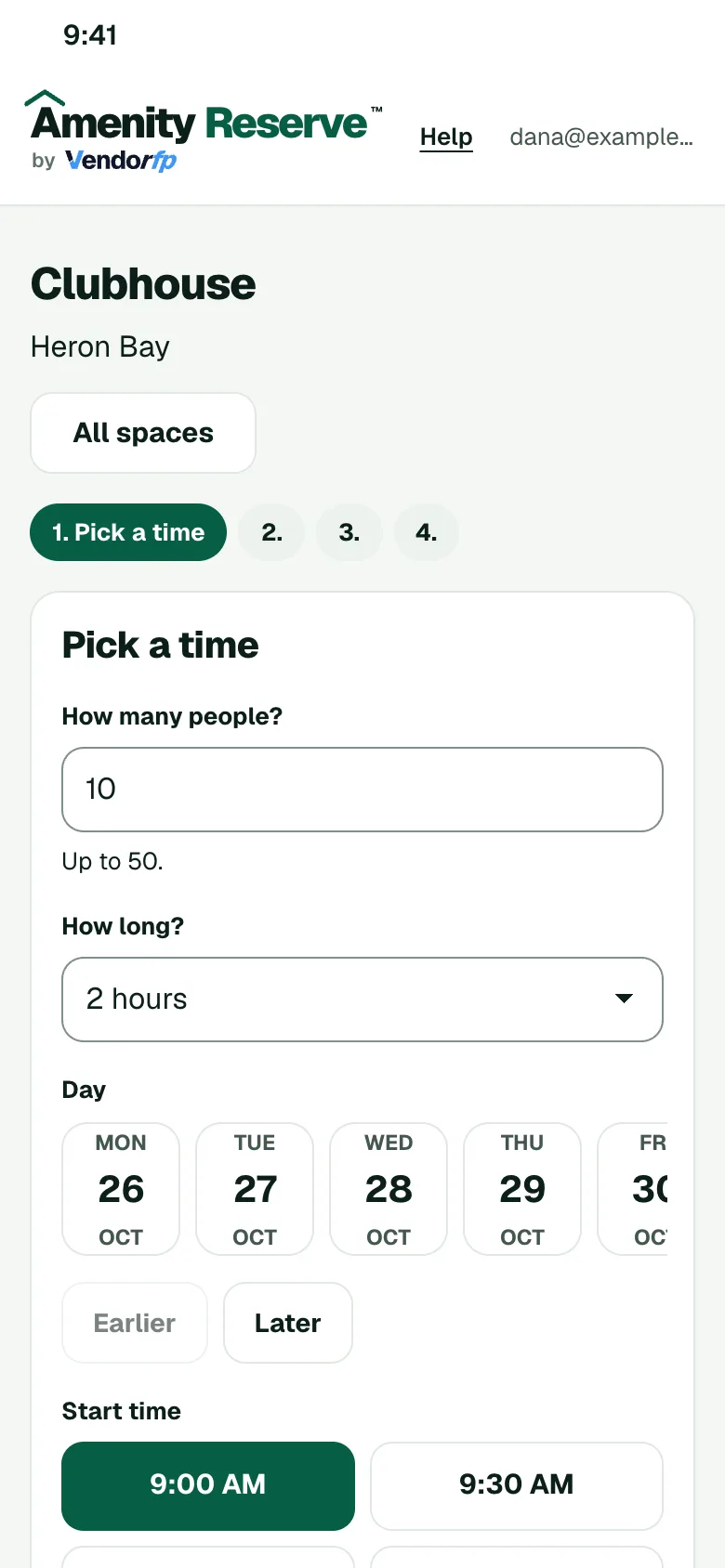
After you sign in, you see the spaces your community has published, such as the clubhouse, the pavilion, the courts or a guest suite. Pick one, then choose a day. Only times the community’s rules allow are offered. Set how long you need and how many people are coming, then answer the few questions the community asks, such as what the event is for.
Some spaces confirm the moment you send the request. Others wait for an admin, and the booking page says which. While a request waits, your time is held for you. You hear back by email.
Signing the house rules
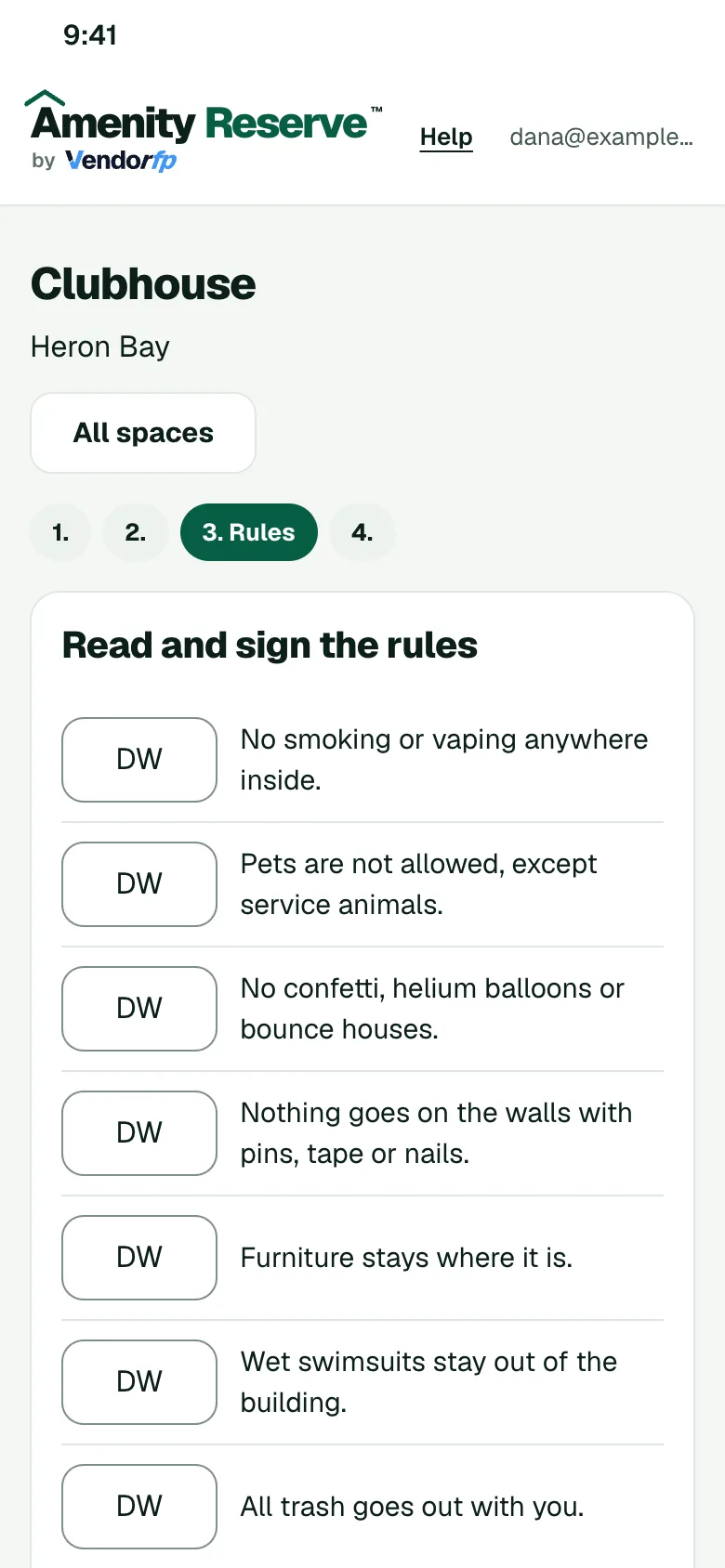
Before you send a request you read the community’s house rules for that space. Depending on the community, you tick a box to agree or you initial each rule and sign with your typed name. Your signed copy is kept with the booking.
Paying a rental fee
Fees are set by your community, and the booking page shows the amount before you send anything. Your community’s office collects the fee, and a deposit if it asks for one, and the booking page says so. No card is charged through the booking page.
Your calendar invite
Open a confirmed or pending booking and choose Download this booking (.ics). You get a standard calendar file that works with Apple Calendar, Google Calendar and Outlook.
Cancelling
Open the booking and choose to cancel it. The time is free for others straight away. A booking can’t be cancelled by the member once it has started. If you paid a fee or a deposit at the office, ask the office about a refund.
Need help?
Read the frequently asked questions or contact support. For anything about your community’s own rules, fees or approvals, ask your community’s office first.
See Amenity Reserve set up with your community’s amenities
Add your first space with the guided setup and open it for bookings. Prefer a walkthrough? Schedule a call.